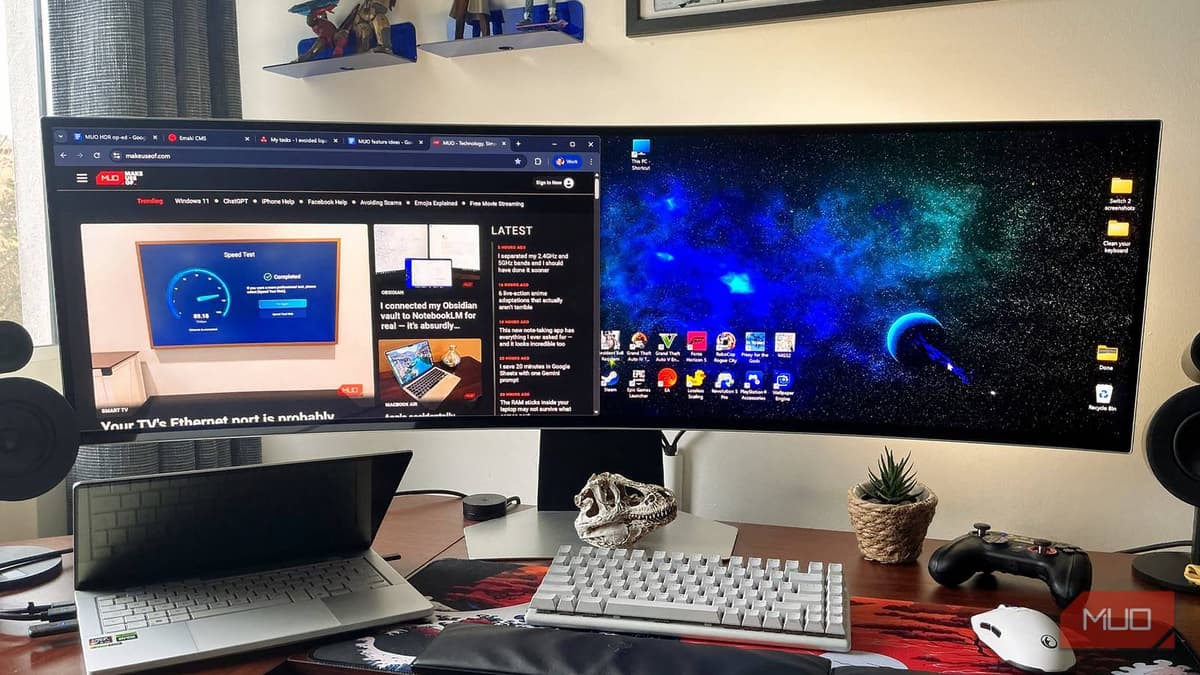
Windows 11 HDR Looks Bad for Browsing and Gaming, so I Fixed It with These Tweaks
•March 11, 2026
0
Why It Matters
Improved HDR calibration enhances visual fidelity, boosting user satisfaction and competitive edge for hardware manufacturers. It also reduces reliance on third‑party workarounds, streamlining the Windows ecosystem.
Key Takeaways
- •Windows HDR defaults cause washed-out colors.
- •HDR Calibration app improves SDR-to-HDR conversion.
- •Nvidia RTX HDR adds AI-driven tone mapping.
- •Auto HDR often yields poor results on older games.
- •Proper calibration boosts gaming and browsing experience.
Pulse Analysis
Windows 11 introduced native HDR support to keep pace with high‑end displays, yet many users encounter muted colors, banding, and inconsistent brightness when browsing or using non‑HDR applications. These shortcomings stem from the operating system’s generic tone‑mapping algorithms, which struggle to translate standard dynamic range (SDR) content onto wide‑gamut panels. As HDR monitors become mainstream in both consumer and professional settings, the visual gap threatens user productivity and erodes confidence in Microsoft’s ecosystem, prompting a surge in community‑driven solutions.
Microsoft’s HDR Calibration app, available through the Microsoft Store, offers a straightforward way to fine‑tune maximum luminance, black levels, and full‑frame uniformity. The interface mirrors console calibration tools, allowing users to achieve a balanced picture in under a minute without deep technical knowledge. By adjusting these parameters, the app mitigates the washed‑out look of desktop and web content, delivering richer contrast and more accurate colors. This utility not only improves day‑to‑day tasks but also sets a baseline for developers to test HDR implementations on Windows platforms.
For gamers, especially those equipped with Nvidia GPUs, the RTX HDR feature adds a layer of AI‑driven tone mapping that surpasses the native Windows solution. Leveraging tensor cores, the Nvidia Control Panel dynamically enhances HDR signals, reducing banding and preserving detail in bright and dark areas. Enabling RTX HDR is a three‑click process, yet it yields a noticeable uplift in titles that support HDR and even improves legacy games via Auto HDR. The combined effect of Microsoft’s calibration tools and Nvidia’s advanced processing creates a more compelling HDR experience, encouraging broader adoption of high‑refresh, wide‑color displays across the PC market.
Windows 11 HDR looks bad for browsing and gaming, so I fixed it with these tweaks
0
Comments
Want to join the conversation?
Loading comments...