Best CS2 Settings for Low-End PCs: Boost FPS and Optimize Performance
•February 23, 2026
0
Why It Matters
In competitive shooters, higher frame rates translate directly into lower latency and better reaction times, letting budget‑constrained players stay viable. Optimizing settings provides a cost‑effective path to competitive parity without immediate hardware investment.
Key Takeaways
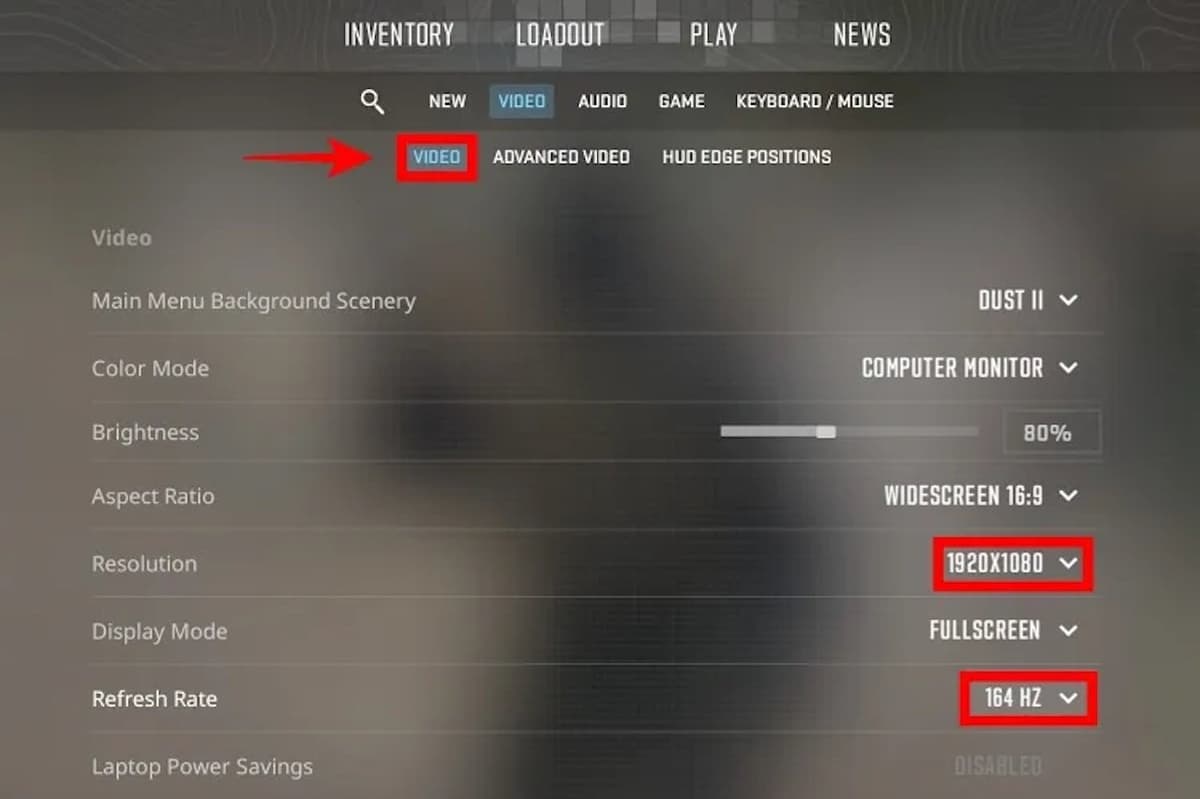
- •Lower resolution and use fullscreen for biggest FPS gain
- •Set all graphics to low, disable ambient occlusion
- •Turn off V‑Sync, motion blur, and anti‑aliasing
- •Add Steam launch options: -novid -high +fps_max 0
- •Optimize Windows power plan and update GPU drivers
Pulse Analysis
Counter‑Strike 2’s shift to the Source 2 engine brings richer lighting and physics, but it also raises the baseline hardware demand. For gamers running integrated graphics or older GPUs, the primary bottleneck is frame pacing rather than visual fidelity. By prioritizing settings that reduce draw calls—such as low resolution, fullscreen mode, and disabling resource‑heavy effects—players can reclaim 20‑40% of their original frame budget, turning choppy 45 FPS sessions into smooth 100 FPS play.
Beyond the in‑game video menu, system‑level adjustments amplify these gains. Steam launch options like "-novid -high +fps_max 0" cut startup overhead, boost CPU priority, and remove artificial caps, while Windows Game Mode, a High‑Performance power plan, and up‑to‑date GPU drivers ensure the OS isn’t throttling performance. Disabling V‑Sync and anti‑aliasing eliminates unnecessary synchronization and post‑process work, which older cards struggle with. Together, these tweaks create a lean rendering pipeline that maximizes GPU throughput without sacrificing the clarity needed for competitive aiming.
The practical impact extends to the esports ecosystem and casual ladder. Players who fine‑tune these parameters gain a measurable edge—lower input latency and steadier crosshair tracking—without spending on new hardware. When upgrades become necessary, many turn to CS2 skin marketplaces to fund RAM or SSD purchases, turning virtual inventory into tangible performance improvements. This synergy between optimization and micro‑economics underscores a broader trend: software‑level efficiency can bridge the gap for budget gamers, keeping the competitive scene accessible and vibrant.
Best CS2 Settings for Low-End PCs: Boost FPS and Optimize Performance
0
Comments
Want to join the conversation?
Loading comments...