I Changed One Setting in Device Manager and My Wi-Fi Jumped From 260 Mbps to 430 Mbps
Companies Mentioned
Why It Matters
Restoring Wi‑Fi bandwidth improves productivity and ensures users receive the speeds they pay for, while highlighting how default power‑management settings can unintentionally throttle performance.
Key Takeaways
- •Modern Standby enables Wi‑Fi power‑save, throttling speeds during active use
- •Set MIMO Power Save to No SMPS, raising Wi‑Fi to 430 Mbps
- •Fix applied through Device Manager, no registry edits required
- •Disabling power‑save increases adapter draw, modestly reducing battery life
Pulse Analysis
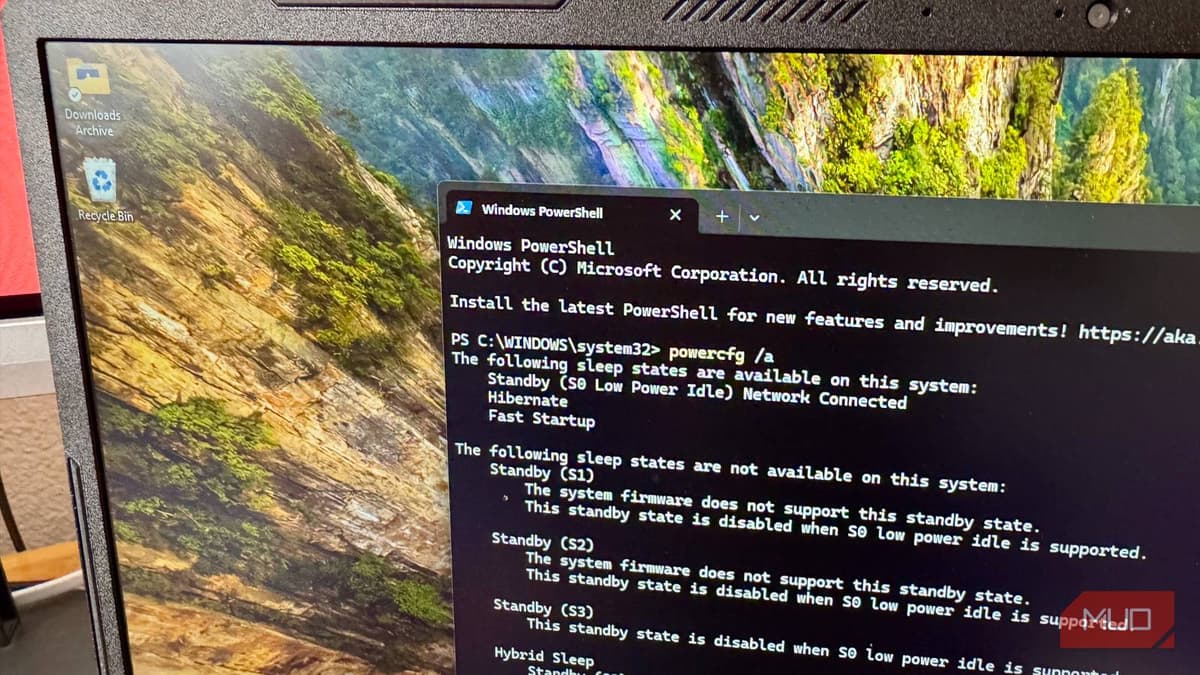
Modern Standby, identified as the S0 low‑power idle state in Windows, was introduced to keep laptops responsive while conserving energy. Unlike the legacy S3 sleep mode, S0 leaves key components—including the Wi‑Fi radio—partially active, and Windows automatically enables a built‑in power‑save mode for the network adapter. While this reduces power draw when the screen is off, the setting can persist during normal usage, especially on battery or when the system wakes from sleep. The result is a noticeable drop in throughput that many users attribute to ISP limitations rather than the operating system.
The fix requires no registry hacks—just a few clicks in Device Manager. After opening the adapter’s Advanced tab, users change the Intel‑specific ‘MIMO Power Save Mode’ from ‘Auto SMPS’ to ‘No SMPS’, or disable the generic ‘Power Saving Mode’ on Realtek and MediaTek chips. In real‑world tests, a laptop that recorded 260 Mbps on battery surged to 430 Mbps once the setting was disabled, and a plugged‑in machine rose from 600 Mbps to 970 Mbps. Because the change only affects the radio’s power policy, it restores the full link rate advertised by the router.
While the bandwidth gain is attractive, disabling Wi‑Fi power saving raises the adapter’s power consumption, shaving a few percent off battery life on portable devices. IT departments should weigh this trade‑off when standardizing image deployments, especially for users who rely on high‑speed wireless for video conferencing or large file transfers. For desktop workstations the adjustment is essentially free, delivering consistent performance without any energy penalty. Ultimately, understanding how Modern Standby interacts with network hardware empowers users to extract the speeds they pay for, and prevents an obscure OS feature from becoming a hidden bottleneck.
I changed one setting in Device Manager and my Wi-Fi jumped from 260 Mbps to 430 Mbps
Comments
Want to join the conversation?
Loading comments...