I Disabled Windows Prefetch to Save RAM — I Was Actually Making My PC Slower
Companies Mentioned
Why It Matters
Understanding Windows’ memory management prevents users from making changes that degrade performance, and helps IT professionals diagnose real bottlenecks rather than chasing misleading metrics.
Key Takeaways
- •Windows uses idle RAM for caching to speed up app launches
- •Disabling Prefetch frees cache but can degrade performance
- •“Committed” memory, not “In Use,” indicates true RAM pressure
- •Resource Monitor provides detailed breakdown of standby, modified, and free RAM
- •High RAM usage is normal if commit limit remains unexceeded
Pulse Analysis
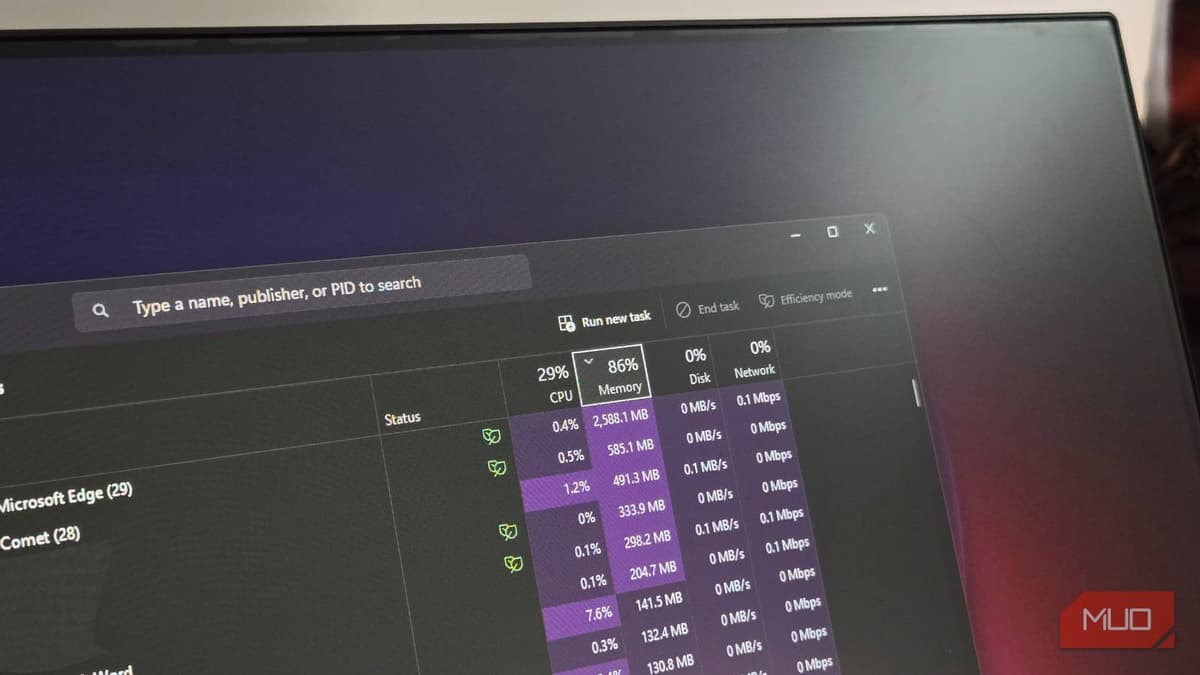
Windows’ memory architecture treats RAM as a dynamic resource, not static storage. When an application starts, the Prefetch subsystem records the files it accesses and stores a copy in otherwise idle memory. This cached data can be reclaimed instantly if a program needs more RAM, allowing the system to keep the most likely resources on hand. The common misconception that lower RAM usage equals better performance leads many to disable Prefetch, but doing so removes a valuable speed‑up mechanism, especially on SSD‑equipped machines where launch times are already fast.
The real indicator of memory health lies in the “Committed” metric, which reflects the total RAM and pagefile space promised to active processes. As long as the committed value stays comfortably below the commit limit, Windows can satisfy new memory requests without resorting to excessive paging. Tools like Resource Monitor break down usage into categories—In Use, Standby, Modified, and Free—offering a granular view that Task Manager’s simple percentages obscure. Monitoring committed memory and understanding cache behavior equips users to spot genuine shortages rather than reacting to benign high‑utilization numbers.
For professionals managing workstations or advising end‑users, the takeaway is clear: avoid tinkering with built‑in optimizations unless a measurable slowdown is observed. Instead, focus on the right metrics, keep the pagefile appropriately sized, and let Windows manage its cache. This approach preserves the performance gains of Prefetch while preventing unnecessary troubleshooting, ultimately supporting smoother workflows and better system reliability.
I disabled Windows Prefetch to save RAM — I was actually making my PC slower
Comments
Want to join the conversation?
Loading comments...