Consumer Tech News and Headlines
  • All Technology
  • AI
  • Autonomy
  • B2B Growth
  • Big Data
  • BioTech
  • ClimateTech
  • Consumer Tech
  • Crypto
  • Cybersecurity
  • DevOps
  • Digital Marketing
  • Ecommerce
  • EdTech
  • Enterprise
  • FinTech
  • GovTech
  • Hardware
  • HealthTech
  • HRTech
  • LegalTech
  • Nanotech
  • PropTech
  • Quantum
  • Robotics
  • SaaS
  • SpaceTech
AllNewsDealsSocialBlogsVideosPodcastsDigests

Consumer Tech Pulse

EMAIL DIGESTS

Daily

Every morning

Weekly

Sunday recap

NewsDealsSocialBlogsVideosPodcasts
Consumer TechNewsYour Mac Has a Powerful Automation Tool Most People Never Open
Your Mac Has a Powerful Automation Tool Most People Never Open
Consumer Tech

Your Mac Has a Powerful Automation Tool Most People Never Open

•February 17, 2026
0
MakeUseOf
MakeUseOf•Feb 17, 2026

Companies Mentioned

Apple

Apple

AAPL

Google

Google

GOOG

Slack

Slack

WORK

Why It Matters

By democratizing automation, Shortcuts boosts productivity for both casual and power users, reducing manual effort and enabling cross‑device workflow consistency.

Key Takeaways

  • •Shortcuts replaces Automator with drag‑and‑drop interface
  • •No coding required to build Mac automations
  • •Gallery offers ready‑made shortcuts for quick setup
  • •Integrates with third‑party apps and APIs like GPT
  • •Works across macOS, iPhone, iPad for unified workflows

Pulse Analysis

The transition from Automator to Shortcuts marks a strategic shift in Apple’s approach to user‑level scripting. While Automator relied on a more technical, script‑centric model, Shortcuts embraces a block‑based, drag‑and‑drop interface that mirrors visual programming environments like Scratch. This design lowers the barrier to entry, allowing non‑technical professionals to prototype and deploy automations in minutes rather than hours, and encourages broader adoption across the macOS ecosystem.

Beyond basic task sequencing, Shortcuts shines through its extensibility. Users can call third‑party applications such as BetterDisplay to adjust monitor layouts, invoke Google Assistant for smart‑home control, or connect to large‑language‑model APIs like Gemini and GPT for AI‑driven actions. The same shortcuts sync across iPhone, iPad, and Mac, creating a seamless cross‑device workflow that adapts to varied work contexts. Community hubs like r/shortcuts further enrich the ecosystem with shared recipes, accelerating innovation and practical use‑case discovery.

For businesses, the implications are significant. Automating routine operations—email triage, file organization, or system configuration—reduces manual overhead and minimizes error rates. Enterprises can standardize productivity boosters without deploying custom scripts or additional software licenses, leveraging a native Apple tool that aligns with existing security policies. As AI integration matures, Shortcuts could become a front‑line interface for orchestrating complex, data‑driven processes, positioning it as a cost‑effective catalyst for digital transformation.

Your Mac has a powerful automation tool most people never open

It may come pre‑installed, but it's not bloatware

If you haven’t really explored all the pre‑installed apps on your Mac, I’d strongly recommend giving the Shortcuts app a try. For something that comes built‑in, it’s surprisingly powerful. With everything it’s capable of, it probably deserves a better name because it doesn’t fully capture what the app can actually do. It’s easily one of the most capable power tools available on your Mac.

You can think of it as the modern replacement for Automator. While Automator can still handle some more advanced or complex workflows in certain cases, Shortcuts makes the entire process much more approachable. Setting things up feels far more intuitive, which makes automation something anyone can start using instead of something that feels reserved for power users.

It uses a block‑based system to build automations, which means you simply drag‑and‑drop actions into a workflow and define the conditions yourself. If you’ve ever used something like Scratch in a basic programming class, the concept will feel familiar.

But even if you’ve never touched anything like that before, it’s not intimidating. Everything works through simple drag‑and‑drop controls, and you don’t need to write a single line of code to make it work. I will even guide you through how to get it working, and believe me, it’s quite simple.


Setting up automations in Shortcuts is easy

Just drag and drop

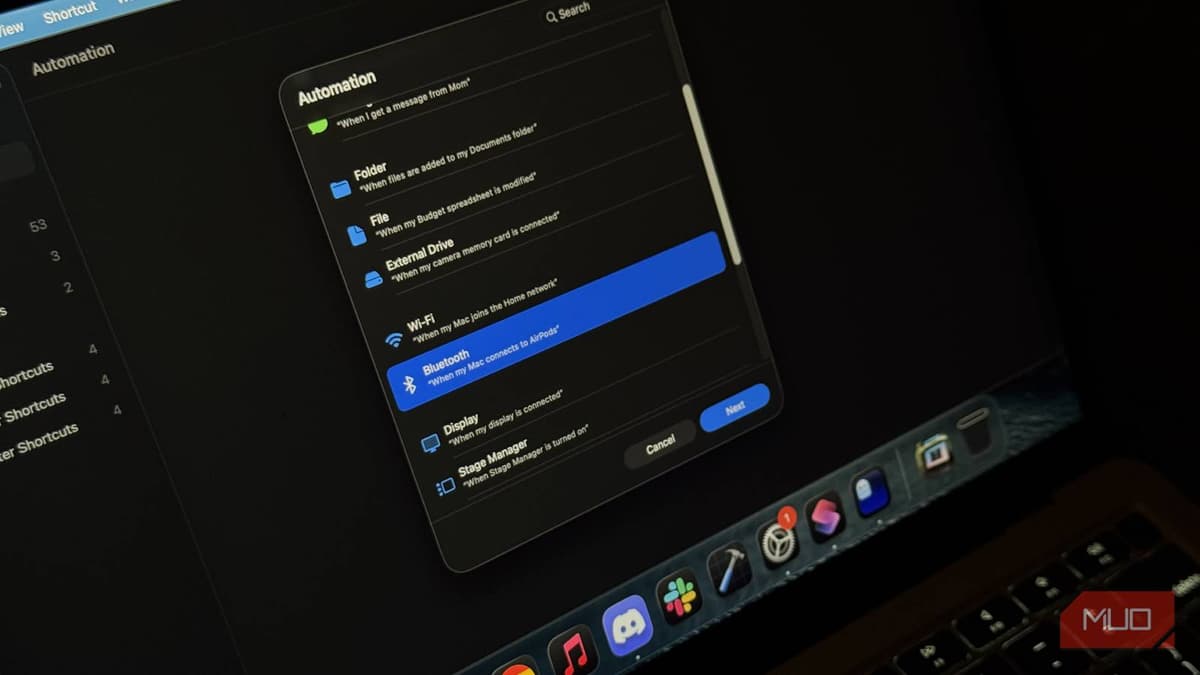
To get started, all you need to do is open the Shortcuts app on your Mac. Before jumping straight into the Automations tab, it’s a good idea to experiment with regular shortcuts first. When you create a shortcut, you’re essentially defining a set of actions that will run after a specific condition is met.

Start with the Gallery tab. You’ll find plenty of ready‑made shortcuts there, and there’s a good chance the automation you’re thinking about already exists. If it doesn’t, that’s fine too; you can always build your own from scratch.

To create your own shortcut, just search for the functions you want to add—such as lowering your brightness—and drag them to the canvas on the left. You’re not restricted to one function; you can stack multiple at once. It’s really just searching for what you want to do and adding them to your list of actions.

Once you’ve set up the trigger, select the shortcut you just made, and you now have an automation ready to go without writing a single line of code.


I’ve built some really cool automations for myself

Making my life easier

I understand that building your first automation can feel a little confusing, mainly because you’re not even sure what you want to automate yet. There are a ton of tasks in your life that you should automate. That’s why it helps to look at real examples.

My favorite one actually uses a third‑party app called BetterDisplay. It adds a lot of extra control over external monitors, and it also supports Shortcuts integration.

Manually rearranging the displays every single time was annoying, so I built a shortcut that automatically detects whether my external keyboard is connected and adjusts the screen arrangement accordingly. Now it just switches layouts on its own, and I don’t have to think about it anymore.

I also don’t own any HomeKit‑enabled devices, but I use the Shortcuts app to invoke Google Assistant to control all my lights. I even have an automation for “work mode,” where as soon as I open Slack, my Mac automatically turns on a specific Focus mode and starts my concentration playlist.

If you need even more inspiration, definitely check out what the community at r/shortcuts has been up to.


This might be the most underrated app Apple has ever made

The cool thing is you can use the same app on your iPhone and iPad too, and there are a ton of cool iPhone shortcuts that will work on your Mac as well. It’s definitely a bit of a creative task, so I would suggest you take your time and experiment around to come up with something that changes your workflow.

If you’re also into scripting and programming, you can even integrate LLMs like Gemini or GPT via their respective APIs to get even more functionality in your Shortcuts.

Read Original Article
0

Comments

Want to join the conversation?

Loading comments...