
3 Form Builders Better Than Google Forms
Google Forms is a free, quick solution, but its limited branding and workflow options prompt many businesses to seek alternatives. This video reviews three form‑building platforms—Tiger Form, Nerdy Forms, and Formsite—highlighting each one's strengths and pricing structures. Tiger Form is optimized for mobile respondents, offering built‑in QR‑code generation and scan‑tracking, making it ideal for events, restaurants, or retail sign‑ups. Nerdy Forms focuses on design flexibility, allowing full control over titles, buttons, icons, and colors to create visually engaging, brand‑consistent forms. Formsite targets power users with advanced fields, conditional logic, pricing tables, and coupon codes, supporting complex order or shipping workflows. Specific examples include Tiger Form’s QR‑code customization with logos, Nerdy Forms’ draggable button size slider and icon library, and Formsite’s rule‑based field visibility and multi‑item pricing options. Pricing ranges from free tiers with strict limits to paid plans starting at $14 per month for Tiger and Nerdy, and $21 for Formsite after a trial. Choosing the right builder lets companies improve lead capture, reinforce brand identity, and scale form complexity as they grow, reducing reliance on Google’s generic interface.
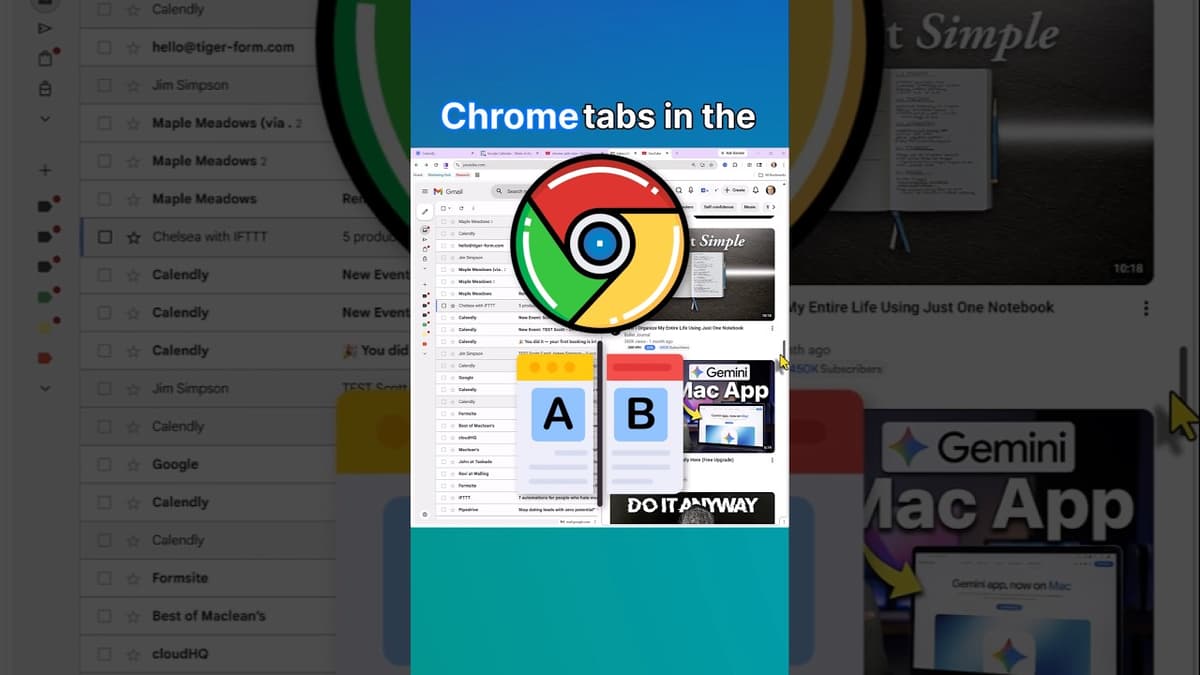
How to Split Screen View in Google Chrome
The video demonstrates Chrome’s built‑in split‑screen feature, allowing users to display two tabs simultaneously within a single browser window. By right‑clicking any tab and choosing “Add tab to new split view,” the interface creates a side‑by‑side pane where a second,...

Gemini Gems Quick Tutorial (Google AI)
The video introduces Gemini AI’s “Gems” – a built‑in tool that lets users craft highly detailed prompts that can be saved and reused across projects. By uploading a source document, such as meeting notes, and attaching a custom instruction set, the...
How to Use Trello Automation - Tutorial for Beginners
The video walks beginners through Trello’s built‑in automation feature, showing how to create a rule that automatically assigns a member and sets a due date when a card lands in a specific list. The presenter demonstrates opening the Automation menu,...
How to View Trello Calendar without Paying for Premium
The video explains how Trello users can access a calendar view without purchasing Trello Premium. By navigating to the Power‑Ups menu, selecting “Add Power‑Ups,” and searching for “Calendar,” users install the free Calendar Power‑Up, which then adds a calendar icon next...

How to Use Gemini Gems - Tutorial for Beginners
The video walks beginners through building a Gemini Gem – a custom AI assistant that automates a single, repeatable workflow. By navigating to the Gem Manager, users create a new Gem, assign a descriptive name, optional description, and then craft...
How to Never Forget an Email Follow-Up #shorts
The video shows how to guarantee email follow‑ups by using Boomerang’s built‑in reminder feature before hitting send. By selecting the "Remind me in X days if no reply" checkbox, users can choose a custom interval—typically two to four days—to have...
How to Speed Up Google Chrome
The video walks viewers through a built‑in Chrome shortcut that instantly reveals which tabs are draining system resources. By pressing Shift + Escape, users open Chrome’s Task Manager, then sort the list by memory usage to pinpoint the most demanding pages. The presenter...